
E-Manifest Sync Feature (ACE and ACI eManifest): Difference between revisions
No edit summary |
No edit summary |
||
| Line 5: | Line 5: | ||
= eManifest Sync Feature (ACE & ACI) = | = eManifest Sync Feature (ACE & ACI) = | ||
The '''eManifest Sync Feature''' lets you update | The '''eManifest Sync Feature''' lets you submit and update '''ACE''' and '''ACI''' eManifests using a single action — '''Sync with CBP''' or '''Sync with CBSA'''. | ||
Instead of manually selecting specific “Send to CBP/CBSA” message types when changes are needed, you can: | |||
# Edit the manifest normally | |||
# Click Sync | |||
# BorderConnect transmits the appropriate update message(s) to customs automatically | |||
This guide assumes you have an active BorderConnect subscription. If you are not currently set up, please [https://borderconnect.com/contact-us.htm contact BorderConnect]. | This guide assumes you have an active BorderConnect subscription. If you are not currently set up, please [https://borderconnect.com/contact-us.htm contact BorderConnect]. | ||
== What | == What Sync does == | ||
When you click '''Sync with CBP''' or '''Sync with CBSA''': | When you click '''Sync with CBP''' (ACE) or '''Sync with CBSA''' (ACI), BorderConnect: | ||
* | * Transmits a new manifest to customs, '''or''' | ||
* | * Sends the correct update/correction messages if the manifest is already on file | ||
* | * Shows a summary of detected changes (when applicable) | ||
* Records all messaging activity in the '''Trip Action Plan / Changelog History''' | |||
== When | == When you should Sync == | ||
Sync is used when: | |||
* You are | * You are sending a brand-new ACE/ACI eManifest to customs | ||
* Your manifest is already on file and you | * Your manifest is already on file and you changed something, such as: | ||
** Driver, truck, or trailer details | ** Driver, truck, or trailer details | ||
** Trip number / CRN | ** Trip number / CRN | ||
** Port | ** Port selection | ||
** Shipments added/removed or shipment edits | ** Shipments added/removed, or shipment detail edits | ||
* You see a “Sync required” | * You see a “Sync required” prompt on the eManifest Details page or on the listing page | ||
== Syncing a new eManifest == | == Syncing a new eManifest == | ||
# Create the ACE or ACI eManifest and complete the required details. | |||
# Create | |||
# On the eManifest Details page, click: | # On the eManifest Details page, click: | ||
#* '''Sync with CBP''' (ACE), or | #* '''Sync with CBP''' (ACE), or | ||
#* '''Sync with CBSA''' (ACI) | #* '''Sync with CBSA''' (ACI) | ||
# | # While syncing, the page will display a status panel showing progress. | ||
# | # Once accepted, the manifest typically transitions to an “On File” status. | ||
<center> | <div style="text-align:center; margin:16px 0;"> | ||
<img src="{{filepath:Emanifest-sync-required.png}}" alt="Sync with CBP/CBSA is required panel" style="max-width:900px; width:100%; height:auto;"> | |||
</ | </div> | ||
<center> | <div style="text-align:center; margin:16px 0;"> | ||
<img src="{{filepath:Emanifest-sync-in-progress.png}}" alt="Sync in progress panel" style="max-width:900px; width:100%; height:auto;"> | |||
</ | </div> | ||
<center> | <div style="text-align:center; margin:16px 0;"> | ||
<img src="{{filepath:Synced-with-cbp.png}}" alt="Synced confirmation panel" style="max-width:900px; width:100%; height:auto;"> | |||
</ | </div> | ||
== | == Syncing after you make changes == | ||
If an eManifest is already on file and you | If an eManifest is already on file and you edit it, BorderConnect will prompt you to sync again. | ||
# Open the eManifest Details page. | # Open the eManifest Details page. | ||
# Make the required updates | # Make the required updates. | ||
# | # Review the “Changes made since last sync” summary near the top. | ||
# Click '''Sync with CBP''' or '''Sync with CBSA''' to transmit the | # Click '''Sync with CBP''' or '''Sync with CBSA''' to transmit the updates. | ||
<center> | <div style="text-align:center; margin:16px 0;"> | ||
<img src="{{filepath:Emanifest-sync-corrections.png}}" alt="Sync required after edits summary" style="max-width:900px; width:100%; height:auto;"> | |||
</ | </div> | ||
== Identifying manifests that require | == Identifying manifests that require Sync == | ||
You don’t need to open each manifest individually | You don’t need to open each manifest individually. | ||
On the '''eManifest Listing''' page: | On the '''eManifest Listing''' page: | ||
* Manifests requiring sync are clearly flagged | * Manifests requiring sync are clearly flagged | ||
* | * Dispatchers can quickly identify which trips still need to be updated | ||
<center> | <div style="text-align:center; margin:16px 0;"> | ||
<img src="{{filepath:Emanifest-sync-is-required-listing.png}}" alt="Manifest listing showing sync required indicator" style="max-width:900px; width:100%; height:auto;"> | |||
</ | </div> | ||
== Viewing transmitted | == Viewing what was transmitted (Trip Action Plan / Changelog History) == | ||
BorderConnect records the messaging activity for each manifest. | |||
To view | To view the details: | ||
# Open the '''eManifest Details''' page | # Open the '''eManifest Details''' page | ||
# Scroll to the bottom | # Scroll to the bottom | ||
# Review the '''Trip Action Plan / Changelog History''' | # Review the '''Trip Action Plan / Changelog History''' | ||
<center> | <div style="text-align:center; margin:16px 0;"> | ||
<img src="{{filepath:Ace-trip-action-plan.png}}" alt="Trip Action Plan / Changelog History section" style="max-width:900px; width:100%; height:auto;"> | |||
</ | </div> | ||
== | == Why we avoid thumbnails on this page == | ||
If | If your wiki is showing '''Error creating thumbnail''', it usually means the thumbnail generator is failing (server/image processing/permissions/job queue). | ||
To keep this page readable even when thumbnails are broken, this article: | |||
* | * Does '''not''' use <code>thumb</code> | ||
* | * Does '''not''' use <code>|800px</code> on <code>[[File:...]]</code> tags | ||
* Displays images using the original file URL via <code>{{filepath:...}}</code> to avoid thumbnail rendering entirely | |||
[[Category:BorderConnect Software User Guide]] | [[Category:BorderConnect Software User Guide]] | ||
Revision as of 16:43, 23 January 2026
|
🔖 This article is part of the BorderConnect Software User Guide |
eManifest Sync Feature (ACE & ACI)
The eManifest Sync Feature lets you submit and update ACE and ACI eManifests using a single action — Sync with CBP or Sync with CBSA.
Instead of manually selecting specific “Send to CBP/CBSA” message types when changes are needed, you can:
- Edit the manifest normally
- Click Sync
- BorderConnect transmits the appropriate update message(s) to customs automatically
This guide assumes you have an active BorderConnect subscription. If you are not currently set up, please contact BorderConnect.
What Sync does
When you click Sync with CBP (ACE) or Sync with CBSA (ACI), BorderConnect:
- Transmits a new manifest to customs, or
- Sends the correct update/correction messages if the manifest is already on file
- Shows a summary of detected changes (when applicable)
- Records all messaging activity in the Trip Action Plan / Changelog History
When you should Sync
Sync is used when:
- You are sending a brand-new ACE/ACI eManifest to customs
- Your manifest is already on file and you changed something, such as:
- Driver, truck, or trailer details
- Trip number / CRN
- Port selection
- Shipments added/removed, or shipment detail edits
- You see a “Sync required” prompt on the eManifest Details page or on the listing page
Syncing a new eManifest
- Create the ACE or ACI eManifest and complete the required details.
- On the eManifest Details page, click:
- Sync with CBP (ACE), or
- Sync with CBSA (ACI)
- While syncing, the page will display a status panel showing progress.
- Once accepted, the manifest typically transitions to an “On File” status.
<img src="https://wiki.borderconnect.com/images/e/ee/Emanifest-sync-required.png" alt="Sync with CBP/CBSA is required panel" style="max-width:900px; width:100%; height:auto;">

<img src="https://wiki.borderconnect.com/images/9/9e/Emanifest-sync-in-progress.png" alt="Sync in progress panel" style="max-width:900px; width:100%; height:auto;">

<img src="https://wiki.borderconnect.com/images/5/5c/Synced-with-cbp.png" alt="Synced confirmation panel" style="max-width:900px; width:100%; height:auto;">

Syncing after you make changes
If an eManifest is already on file and you edit it, BorderConnect will prompt you to sync again.
- Open the eManifest Details page.
- Make the required updates.
- Review the “Changes made since last sync” summary near the top.
- Click Sync with CBP or Sync with CBSA to transmit the updates.
<img src="https://wiki.borderconnect.com/images/d/d0/Emanifest-sync-corrections.png" alt="Sync required after edits summary" style="max-width:900px; width:100%; height:auto;">

Identifying manifests that require Sync
You don’t need to open each manifest individually.
On the eManifest Listing page:
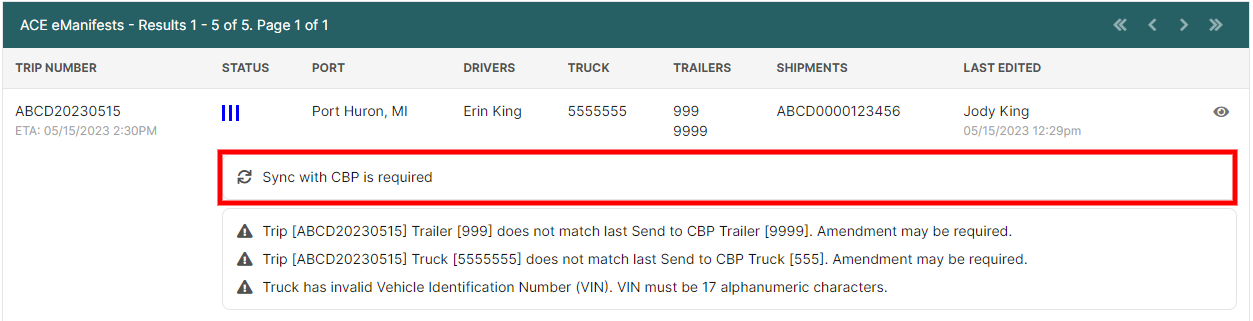
- Manifests requiring sync are clearly flagged
- Dispatchers can quickly identify which trips still need to be updated
<img src="https://wiki.borderconnect.com/images/c/cb/Emanifest-sync-is-required-listing.png" alt="Manifest listing showing sync required indicator" style="max-width:900px; width:100%; height:auto;">
Viewing what was transmitted (Trip Action Plan / Changelog History)
BorderConnect records the messaging activity for each manifest.
To view the details:
- Open the eManifest Details page
- Scroll to the bottom
- Review the Trip Action Plan / Changelog History
<img src="https://wiki.borderconnect.com/images/d/d5/Ace-trip-action-plan.png" alt="Trip Action Plan / Changelog History section" style="max-width:900px; width:100%; height:auto;">

Why we avoid thumbnails on this page
If your wiki is showing Error creating thumbnail, it usually means the thumbnail generator is failing (server/image processing/permissions/job queue).
To keep this page readable even when thumbnails are broken, this article:
- Does not use
thumb - Does not use
|800pxonFile:...tags - Displays images using the original file URL via
to avoid thumbnail rendering entirely