
Creating a Split Shipment (ACE Manifest): Difference between revisions
No edit summary |
No edit summary |
||
| Line 14: | Line 14: | ||
<div class="bc-card"> | <div class="bc-card"> | ||
<div class="embedvideo"> | <div class="embedvideo"> | ||
{{#ev:youtube|ao9MC-VFGQw| | {{#ev:youtube|ao9MC-VFGQw|480}} | ||
</div> | </div> | ||
</div> | </div> | ||
Revision as of 16:42, 4 February 2026
|
🔖 This article is part of the BorderConnect ACE Manifest Guide |
Split Shipments in ACE
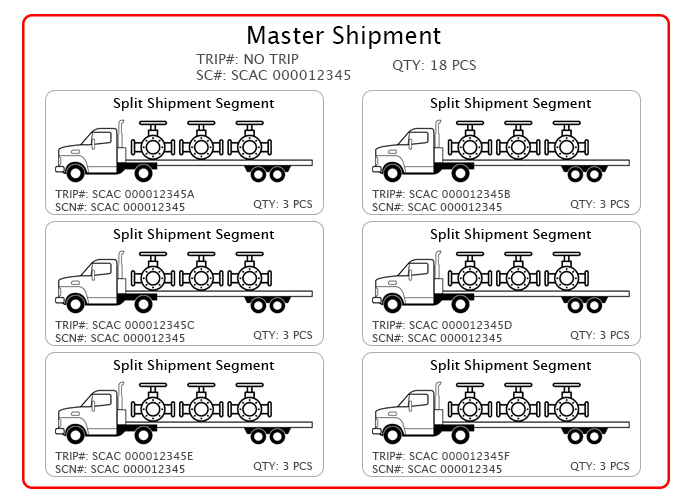
A comprehensive guide to managing shipments that cross the border in multiple loads under a single Shipment Control Number (SCN).
Overview
A Split Shipment occurs when a single PAPS entry is transported across the border in multiple loads due to size or operational needs.
Important Rule
Split shipments must be arranged by the importer/broker before the carrier moves the loads. CBP approval is required.
⚙️ Enable Split Shipments (One-Time Setup)
Before starting, ensure this is enabled in your account:
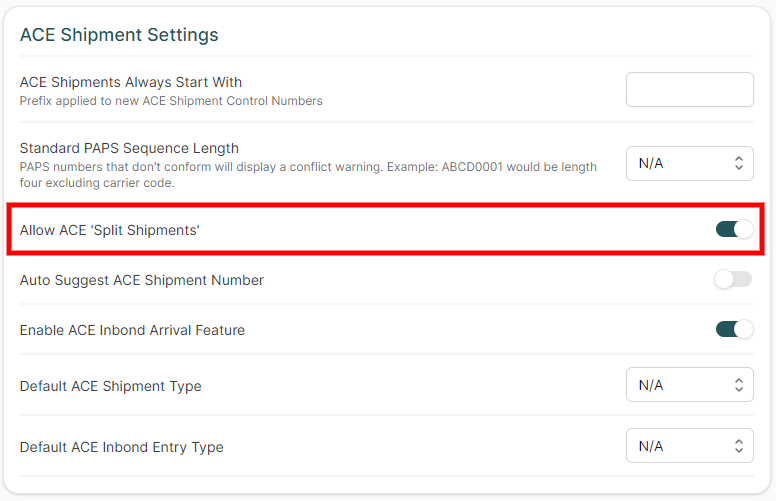
- Go to Account → Company Settings.
- Under ACE Shipment Settings, set Allow ACE "Split Shipments" to Yes.
- Click Save.
Phase 1: The Master Shipment
The Master Shipment holds the total quantity for all loads combined. It is created first and sent to CBP as an "Unassociated" shipment.
1 Create the Shipment
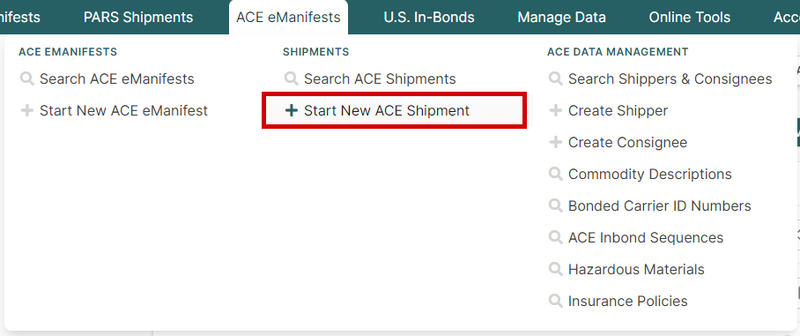
- Navigate to ACE eManifests → Start New ACE Shipment.
- Enter the SCN (PAPS), Shipper, Consignee, and Commodity.
- Crucial: Enter the Total Quantity for all loads combined.
- Click Save.
2 Send to CBP
- On the Shipment Details page, hover over the menu Shipment Only Send to CBP.
- Select Send Unassociated Shipment.
- Wait for the status to change to Accepted.

Phase 2: The Split Segments
Once the Master is accepted, create a separate manifest for every physical truckload.
1 Link the Segment
- Start a New ACE eManifest and enter Trip/Driver info.
- Click Save and Start New ACE Shipment.
- Enter the Same SCN used for the Master.
- Check the box: ☑ Split Shipment Segment.
- Enter the quantity for this specific load only.
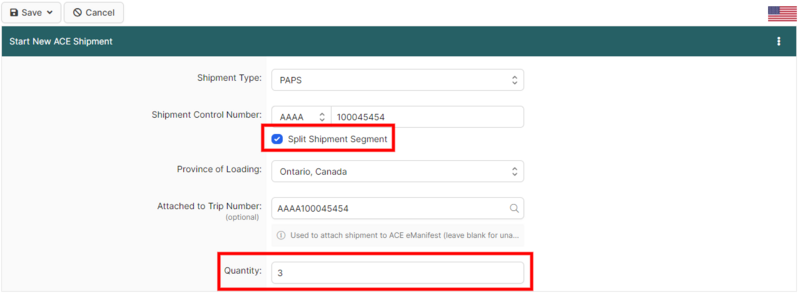
Final Step: Click Save (commodity info will auto-fill), then click Sync with CBP. Repeat this for every load until the total quantity reaches zero.
Visual Workflow
Quick Reference
| Feature | Master Shipment | Split Segment |
|---|---|---|
| Sequence | Created First | Created Second |
| Manifest Status | Unassociated (Standalone) | Attached to eManifest |
| Quantity | Total (All Loads) | Partial (Truck Load) |