
Creating and Maintaining Truck Profiles (ACE and ACI eManifest)
|
🔖 This article is part of the BorderConnect Software User Guide |
Creating and Maintaining Truck Profiles
A guide to managing vehicle data for efficient ACE and ACI manifest creation.
Overview
This guide explains how to create, manage, and maintain truck profiles in BorderConnect.
Truck profiles allow you to store vehicle details once and reuse them on future manifests. This significantly reduces repetitive data entry and helps ensure compliance with customs requirements.
Truck profiles are used to:
- Complete mandatory vehicle information for ACE Manifests.
- Complete mandatory vehicle information for ACI eManifests.
Benefit: Once a truck profile is saved, it remains available in your account and can be selected on any applicable manifest. You do not need to re-enter truck details for each crossing.
Creating a New Truck Profile
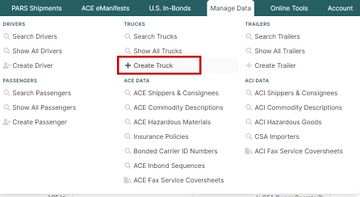
To create a new truck profile, navigate to the Manage Data menu and select Create Truck.
Entering Details
This opens the Add Truck Page, where you can enter the truck’s identifying details.

Required Information
The legend at the bottom of the page indicates which fields are required depending on usage:
| Usage | Minimum Required Fields |
|---|---|
| ACI eManifest Only | Truck Number, License Plate Number, License Plate State/Province. |
| ACE eManifest | (Recommended) All available fields should be completed. |
Tip: If you expect the truck to be used for ACE eManifests in the future, it is strongly recommended to complete all fields now to avoid having to edit the profile later.
Once all required information has been entered, click Save. You will be taken to the Truck Details Page.

License Plate Information
If a license plate was not added during initial setup, it can be added from the Truck Details Page by clicking Add License Plate to Truck.
Warning:
Only one license plate should be associated with a truck profile. Adding multiple plates to a single profile is not compatible with standard ACE and ACI eManifest requirements and may result in filing errors.
Managing Existing Profiles
To view or manage existing truck profiles, go to Manage Data and select Search Trucks.

By default, all active truck profiles are shown. Use the search filters to find specific vehicles quickly.
Actions
- View / Update: Click View to open the Truck Details Page and make changes.
- Delete: Click Delete to permanently remove a truck profile. Deleted profiles are no longer selectable on manifests.
Best Practices
- Naming Conventions: Use consistent truck numbering conventions (e.g., matching the unit number on the door) to avoid confusion.
- Verification: Verify license plate information before saving to ensure customs can process the truck at the gate.
- Completeness: Complete all fields (VIN, DOT, etc.) for any truck that may cross into the U.S. to satisfy ACE requirements.