
Creating and Maintaining Driver Profiles (ACE and ACI eManifest)
|
🔖 This article is part of the BorderConnect Software User Guide |
Creating and Maintaining Driver Profiles
A comprehensive guide to managing driver data for ACE, ACI, and PARS workflows.
Overview
Driver profiles store reusable driver information that BorderConnect automatically applies when creating manifests or tracking shipments. Once a driver profile is created, it can be reused across multiple BorderConnect features without re-entering the same data.
This guide explains:
- When driver profiles are required.
- How to create a new driver profile.
- How to enter travel documents correctly.
- How to manage PARS/RMD sequences.
- How to maintain, deactivate, or restore driver profiles.
Prerequisite: This guide assumes you have an active BorderConnect subscription. If you are not yet set up, please contact BorderConnect.
What Driver Profiles Are Used For
Driver profiles are used in BorderConnect for the following purposes:
| Feature | How the Driver Profile Is Used |
|---|---|
| ACE eManifest | Completes mandatory driver data required by U.S. Customs and Border Protection (CBP). |
| ACI eManifest | Identifies the driver for reference and optional notifications (SMS/Email). |
| PARS Checking | Associates PARS/RMD numbers to drivers for tracking and automatic clearance notifications. |
Creating a New Driver Profile
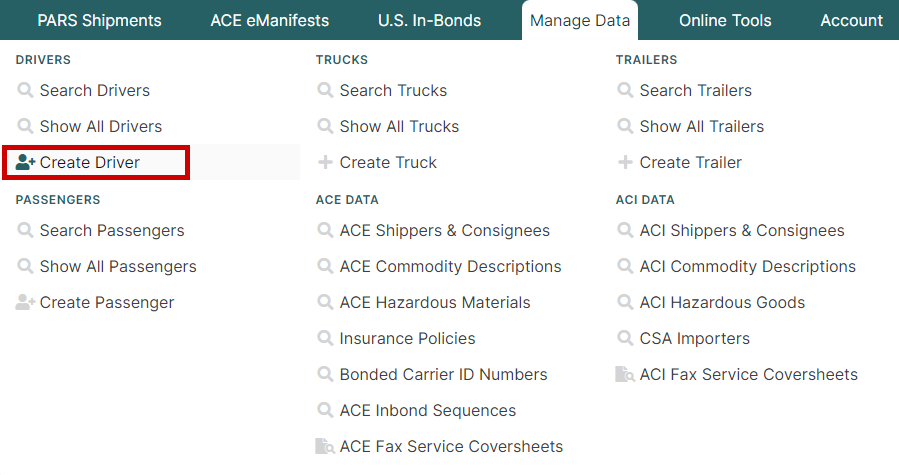
To create a new driver profile, navigate to the Manage Data menu and select Create Driver.
Entering Details
This opens the Add New Driver Page, where you enter the driver’s primary information and optional notification settings.

- Required Fields: At minimum, you must enter the Driver Number, First Name, and Last Name.
- ACE Requirements: If the driver will be used for ACE eManifests, additional fields (DOB, Citizenship, etc.) are required. It is strongly recommended to complete all available fields.
- FAST Drivers: If the driver holds a FAST card, enter the FAST number in the ACE ID / FAST ID field. This simplifies reporting in ACE.
Once all information is entered, click Save to proceed to the Driver Details Page.
Travel Documents (ACE eManifests)
Once the profile is created, you will be taken to the Driver Details Page. This is where you manage Travel Documents, which are required for ACE eManifests unless the driver has a FAST card.

Non-FAST Driver Requirements
Non-FAST drivers must have two travel documents entered:
| Required Document | Notes |
|---|---|
| Commercial Driver’s License (CDL) | Must always be entered. |
| Secondary Travel Document | Must meet [[1]] requirements (e.g., Passport, Permanent Resident Card). |
Steps to Add Documents
1. Click Add Travel Document. 2. Enter the Commercial Driver’s License first and Save. 3. Click Add Travel Document again. 4. Enter the secondary document (e.g., Passport) and Save.
Enhanced Driver’s License (EDL): If the driver uses an EDL, enter it as two separate documents: once as a Commercial Driver’s License and once as an Enhanced Driver’s License.
PARS and RMD Sequences
If the driver profile is used with PARS Checking, entering sequences allows BorderConnect to automatically associate incoming clearance messages to the driver.
1. Click Add PARS Sequence (or RMD Sequence). 2. Enter the assigned number range (e.g., Start: 100, End: 200). 3. Click Save.
The system will display the assigned sequences and the number of remaining stickers, helping you track inventory.
Managing Existing Profiles
To view or manage existing drivers, go to Manage Data and select Search Drivers.

| Action | Procedure |
|---|---|
| Edit | Click View to open the details page, then make changes. Updates apply immediately to future manifests. |
| Delete | Click Delete on the driver record. The driver is deactivated but not permanently removed from the database. |
| Restore | On the Search page, set the filter Is Driver Active to "No". Search for the driver and click Activate to restore the profile. |
CSA Details (TCP Drivers): CSA fields should only be completed by the person responsible for maintaining TCP/CSA lists. Incorrect entries can cause compliance issues. Contact support if unsure.