
Creating and Maintaining Trailer Profiles (ACE and ACI eManifest)
|
🔖 This article is part of the BorderConnect Software User Guide |
Creating and Maintaining Trailer Profiles
A guide to managing trailer data for efficient ACE and ACI manifest creation.
Overview
This guide explains how to create, manage, and maintain trailer profiles in BorderConnect.
Trailer profiles allow you to store trailer details once and reuse them on future manifests. This significantly reduces data entry time and ensures consistency when filing:
- ACE eManifests (US CBP)
- ACI eManifests (Canada CBSA)
Benefit: Once saved, trailer profiles remain available in your account and can be auto-selected whenever you create a new manifest.
Creating a New Trailer Profile
To create a new trailer profile, navigate to the Manage Data menu and select Create Trailer.
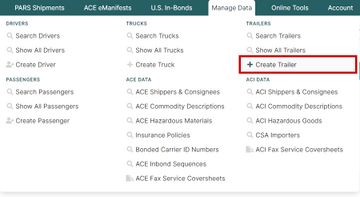
Entering Details
This opens the Add Trailer Page, where you can enter the trailer’s identifying details such as unit number and type.

Requirements
The legend at the bottom of the Add Trailer page indicates required fields based on usage:
| Usage | Notes |
|---|---|
| ACI eManifest | Only one license plate is permitted per trailer profile. |
| ACE eManifest | Trailer details must match conveyance data exactly. |
Once all required information has been entered, click Save. You will be taken to the Trailer Details Page.

License Plate Information
If a license plate was not added during initial setup, it can be added from the Trailer Details Page using the Add License Plate to Trailer button.
Warning for ACI eManifests:
ACI eManifest allows only one license plate per trailer. If a physical trailer uses multiple plates (e.g., for different jurisdictions), you must create separate trailer profiles to ensure ACI compliance.
Managing Existing Profiles
To view or manage existing trailer profiles, go to Manage Data and select Search Trailer.

By default, all trailer profiles in your account are displayed. Use the search filters to find specific units quickly.
Actions
- View / Update: Click View to open the Trailer Details Page and edit information.
- Delete: Click Delete to permanently remove a trailer profile. Deleted profiles are no longer selectable on new manifests.
Best Practices
- Naming Conventions: Use consistent naming or numbering conventions (e.g., "TRL-5301") to make searching easier.
- Verification: Verify license plate numbers and states/provinces carefully before saving to prevent border delays.
- Multiple Plates: Remember to create separate profiles for the same trailer if it requires multiple plates for ACI filings.