
Main Page: Difference between revisions
No edit summary |
No edit summary |
||
| Line 220: | Line 220: | ||
{{BorderPrintPromo}} | {{BorderPrintPromo}} | ||
<div class="bc-card" style="margin-top:30px; | <div class="bc-card" style="margin-top: 30px; border-left: 6px solid #266065; background: linear-gradient(to right, #ffffff, #f9fbfb);"> | ||
<div style="flex: 1 | <div class="bc-2col" style="align-items: center; margin-bottom: 0;"> | ||
[[Image:Aceinbond3.png|400px|center|link=ACE_In_Bond_(CBP_Shipment_Type)]] | |||
</div> | <div style="flex: 1; min-width: 300px;"> | ||
<div style="flex: 2 | <div style="box-shadow: 0 10px 25px rgba(0,0,0,0.12); border-radius: 8px; overflow: hidden; border: 1px solid #e1e8eb;"> | ||
< | [[Image:Aceinbond3.png|400px|center|link=ACE_In_Bond_(CBP_Shipment_Type)]] | ||
This | </div> | ||
< | </div> | ||
[[ACE_In_Bond_(CBP_Shipment_Type)| | |||
</div> | <div style="flex: 1.2; min-width: 300px; padding: 10px;"> | ||
<span style="background-color: #e0f2f1; color: #266065; font-size: 0.75rem; font-weight: 800; padding: 5px 10px; border-radius: 4px; text-transform: uppercase; letter-spacing: 0.5px;"> | |||
Featured Article | |||
</span> | |||
<h2 style="margin-top: 15px; margin-bottom: 15px; color: #2c3e50; font-size: 1.8rem; border: none;">Assigning ACE In-Bond Info</h2> | |||
<p style="font-size: 1.05rem; color: #546e7a; line-height: 1.6; margin-bottom: 25px;"> | |||
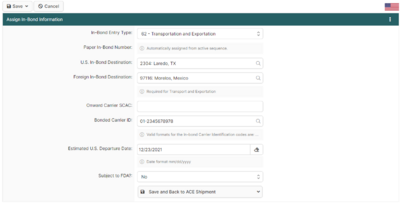
Mastering the ACE In-Bond process is essential for carriers moving goods through the United States without paying duties. This guide breaks down the critical <strong>Assign In-Bond Information</strong> screen, showing you exactly how to configure the <strong>Entry Type</strong> (61 IT vs. 62 T&E), manage paper in-bond numbers, and set the correct Foreign Destination to ensure CBP compliance. | |||
</p> | |||
[[ACE_In_Bond_(CBP_Shipment_Type)|<span style="background-color: #266065; color: white; padding: 12px 24px; border-radius: 50px; font-weight: 600; text-decoration: none; display: inline-block; box-shadow: 0 4px 6px rgba(38, 96, 101, 0.2);">Read Full Guide →</span>]] | |||
</div> | |||
</div> | |||
</div> | </div> | ||
Revision as of 17:23, 11 February 2026
How can we help you?
Search the BorderConnect Knowledge Base or browse the guides below.
New to BorderConnect?
Step 1: Onboarding Readiness Guide
Step 2: Registering Register Account
Step 3: The Basics Software User Guide
Step 4: First ACI Create ACI Manifest
Step 5: First ACE Create ACE Manifest
Common Tasks
Video Tutorials
ACI eManifest Guide
- Creating and Submitting ACI
- Troubleshoot Rejections
- Creating In-Bond (Canada)
- Shipment Types (PARS, etc.)
- CBSA Port Codes
Did you know?
An ACI Lead Sheet is required for every entry. BorderConnect can auto-generate these for you.
ACE Manifest Guide
- Creating and Submitting ACE
- Troubleshoot Rejections
- Creating In-Bond (USA)
- Shipment Types (PAPS, etc.)
- CBP Port Codes
Did you know?
Insurance Policies are mandatory if you are hauling hazardous goods into the U.S.
U.S. In-Bond Manager
Did you know?
If a driver needs to change destinations after arriving in the U.S., you must file a Port Diversion rather than canceling the bond.
Advanced Tools
Did you know?
BorderConnect RNS-PARS can automatically send text messages or emails to your drivers the exact moment their shipment is released by CBSA.
Featured Article
Assigning ACE In-Bond Info
Mastering the ACE In-Bond process is essential for carriers moving goods through the United States without paying duties. This guide breaks down the critical Assign In-Bond Information screen, showing you exactly how to configure the Entry Type (61 IT vs. 62 T&E), manage paper in-bond numbers, and set the correct Foreign Destination to ensure CBP compliance.
Read Full Guide →